
How to Read a Google Maps Ranking Heatmap: 5 Worked Examples
Learn what strong, uneven and limited coverage look like using real GridBeacon scans, with five worked interpretations and clear next steps.

A Google Maps ranking heatmap shows your position at sampled locations for one keyword. Read it by checking the settings, inspecting individual ranks and then looking for geographic patterns. The summary score helps describe the map, but it cannot explain every neighborhood or tell you why a competitor ranks higher.
Below are five worked readings from three historical GridBeacon scans. The figures are visible in the screenshots; the suggested next steps are investigations, not proven explanations of these businesses’ rankings. If you have not run a scan yet, start with the first-scan walkthrough.
First, check what you are measuring
Read the keyword, date, centre, radius and layout before interpreting any colours. A ring layout and a square grid sample different locations. A wider radius also changes the question: you are checking a larger territory, not necessarily losing visibility at the original points.
- Visibility: percentage of scanned points ranking in the top 10.
- Top three: percentage of points ranking in positions 1–3.
- Individual rank: the position returned for that sampled coordinate.
Always read the numbers and legend as well as the colours. Points are samples, not measurements of every street or of how many people search there.
1. Strong coverage everywhere sampled
The Austin insulation scan above shows 61 of 61 points in the top three, 100% visibility and an average rank of 1.3. Its four rings cover a seven-mile radius. The map is consistently green across the sampled area, rather than being strong only beside the business.
What you can say: this business had strong sampled coverage for “attic insulation austin” at the time of the scan.
What you cannot say: it dominates every insulation query, gets every local lead or ranks equally well beyond the scanned boundary. The result applies to this keyword, time and set of coordinates.
Next step: retain this scan as a baseline. If you need to test a wider area or a different service keyword, create a separate baseline rather than mixing it into the original comparison.
2. Top-ten coverage is not top-three coverage
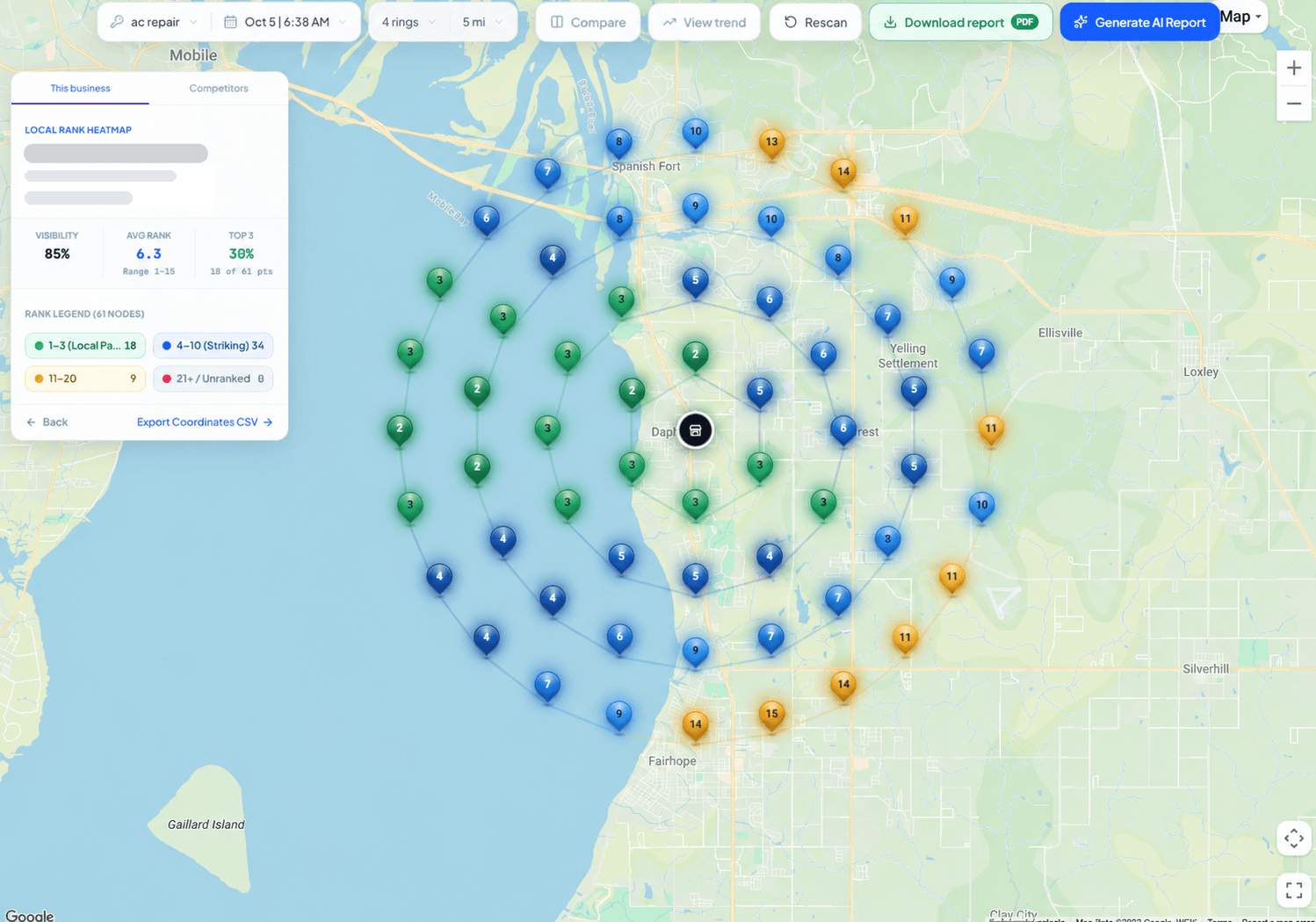
This “ac repair” scan shows 18 points in positions 1–3, 34 in positions 4–10 and nine in positions 11–20. Adding the first two groups gives 52 points in the top 10.
The arithmetic is 52 ÷ 61 × 100 = approximately 85% visibility. Top-three coverage is 18 ÷ 61 × 100 = approximately 30%. Both summaries can be correct at the same time: the listing appears within the top 10 broadly, but reaches the top three at fewer points.
Next step: inspect points ranked 4–10 and compare the businesses above you. Prioritize locations relevant to your customers. Do not describe 85% visibility as 85% of customer traffic or calls.
3. One side of the map is weaker
In the same Daphne screenshot, several green points sit west and southwest of the business marker. More blue and orange points appear toward the east and northeast, including ranks 11–15. The overall score hides this directional difference.
What you can say: results vary across the sampled directions. You cannot infer from that pattern alone whether distance, competitors or relevance caused it. Notice that some sampled points are over water; geographic coverage is not the same as commercially useful coverage.
Next step: open several weak points where customers actually live or work. Record which competitors recur. If you change the area or remove irrelevant points, save that configuration as a new baseline so the next comparison uses the same sample.
4. Limited coverage across a wide area
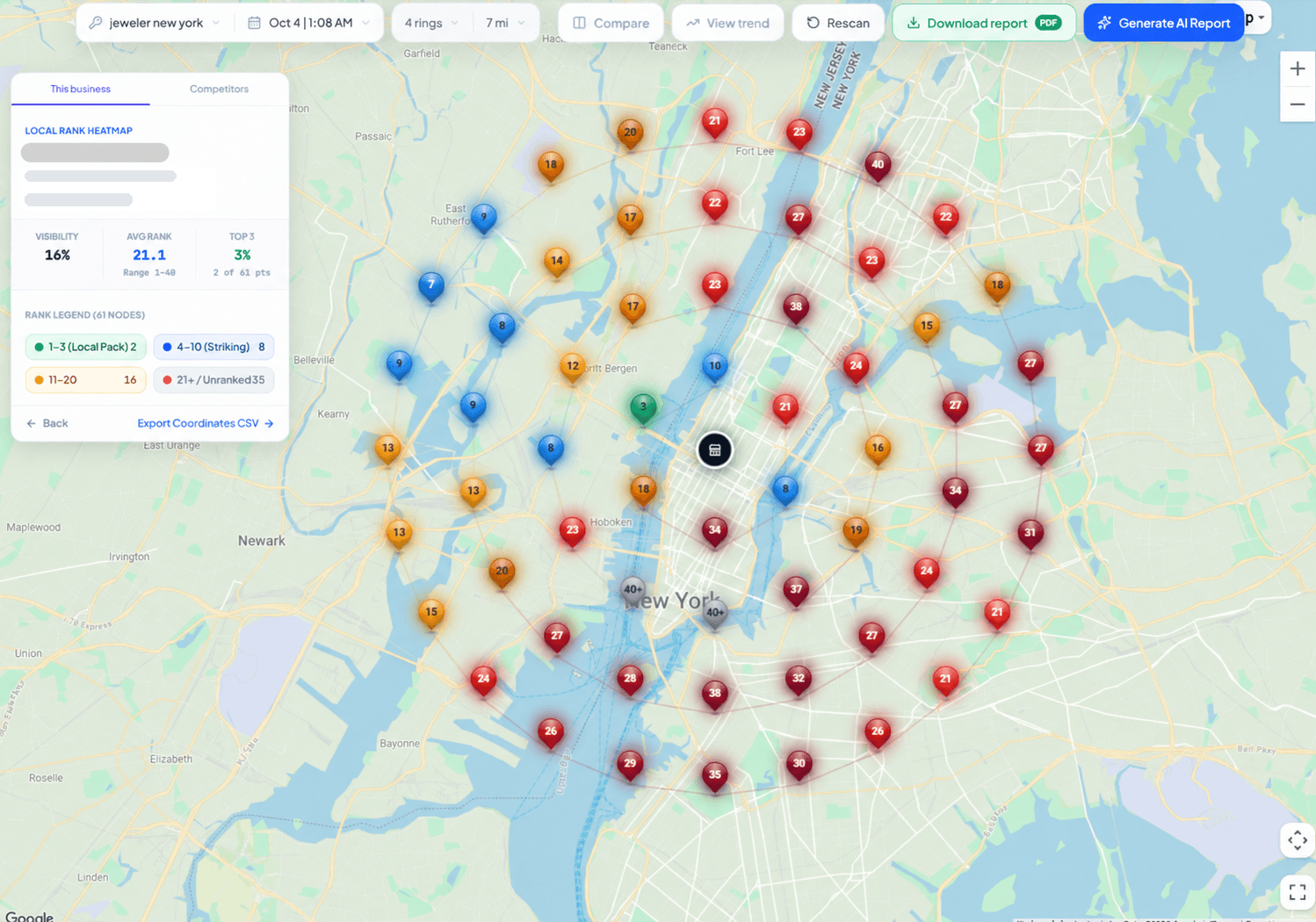
The “jeweler new york” scan shows two top-three points and eight points ranked 4–10. Together, 10 of 61 points are in the top 10: approximately 16%, matching the displayed visibility. Top-three coverage rounds to 3%.
The map crosses a broad area of New York and neighboring New Jersey. That is a very different sample from a few blocks around a shop. The red and orange points show limited coverage for this chosen query and territory; they do not, by themselves, show that the business lost rankings.
Next step: check whether this radius matches the business’s actual customer area and whether the keyword reflects what it sells. A narrower diagnostic scan may help you understand nearby performance, but it must remain separate from the wider baseline.
5. A numeric low rank and “not found” are different
The New York image also contains numeric positions such as 21, 27 and 40, alongside grey “40+” markers. Its legend combines “21+ / Unranked” into one summary group. Inspect the individual point before treating everything in that group as the same outcome.
A numeric rank means the listing was returned at that position. A beyond-depth or not-found marker means you do not have an exact rank within the results captured there. It is not proof that the Business Profile was removed or that nobody can find it anywhere.
Next step: confirm the exact listing and keyword, inspect nearby points and check the profile directly in Google Maps if absence is unexpected. For a sudden change, use the ranking-drop checklist before editing the profile.
Turn the reading into one useful action
Write down the observation, its limit and your next check. For example: “Top-ten coverage is broad, but the eastern customer area has fewer top-three points. I will inspect recurring competitors there and compare the same points next week.” That is more actionable than “the map needs to be greener”.
On paid plans, Rank MRI takes the next step from the map: click any point to see who outranks you and what is different, and weak areas are grouped into one issue instead of dozens of red pins.
Google’s local ranking guidance describes relevance, distance and prominence. Use those as a framework for investigation, not a way to diagnose a specific cause from a coloured map alone.